

Quick answer
Use the same channel that installed OpenCode
The safest OpenCode update is a same-channel update. A Homebrew installation should be upgraded with Homebrew, an npm installation with npm, and the V2 standalone installer with its documented upgrade command. Mixing channels can leave two binaries on PATH, so the command you run may not be the file you just changed.
Before changing anything, run opencode --version and note the path returned by your operating system. Save the project-level configuration, the global configuration, and any custom plugins or skills that matter to your workflow. This is a small precaution, not a full machine backup.
This page covers routine updates to an installation that already works. A move from V1 to V2 is a major-line migration with different compatibility checks; use the OpenCode V2 migration guide for that boundary.
Find the installation channel before you update OpenCode
Do not guess from the command name. Use the evidence on your machine. A version can be installed by a shell script, npm, Bun, Homebrew, an Arch package, a standalone Windows binary, or a package manager inside a container. Each path has its own file location and replacement behavior.
| Likely channel | Clue to check | Update boundary |
|---|---|---|
| V2 shell installer | The binary came from opencode.ai/v2/install | Use the V2 CLI's documented upgrade flow and recheck the binary path. |
| npm | npm list -g @opencode/cli shows the package | Update the global package with npm and confirm its postinstall completed. |
| Bun, pnpm, or Yarn | The package appears in that manager's global list | Use the manager's global update syntax and its script-permission flags. |
| Homebrew | brew list --formula contains an OpenCode formula | Run the formula upgrade; do not also install a second V2 binary. |
| Windows standalone | where opencode points to a downloaded executable | Follow the official Windows download route and replace the intended file. |
On Unix-like systems, command -v opencode and type -a opencode show which executable wins. On PowerShell, use Get-Command opencode | Format-List Source,Version. If more than one location appears, pause and remove the ambiguity before updating.
OpenCode update commands by channel
These examples are starting points taken from the current official installation paths. Package names, aliases, and platform support can change. Read the official page immediately before running a command, especially on a team machine.
V2 CLI installation
For a V2 installation, the CLI documents opencode upgrade and the update alias. Run it from a normal user shell, then repeat opencode --version. If the command is not available, the installation may be an older V1 package or a different binary on PATH.
opencode --version
opencode upgrade
opencode --version
npm, Bun, pnpm, and Homebrew
For npm, the current V2 package is @opencode/cli. A global reinstall is often the clearest recovery when the package manager owns the binary. Bun and pnpm may require an explicit permission flag for install scripts. Homebrew should update the formula that is already installed.
npm install -g @opencode/cli
bun install -g --trust @opencode/cli
pnpm add -g --allow-build=@opencode/cli @opencode/cli
brew upgrade anomalyco/tap/opencode-v2
Do not run every line. Choose one line that matches the installation evidence. Afterward, inspect the manager output for permission errors, skipped postinstall scripts, or a path outside the expected prefix. A successful package transaction is not proof that the shell is invoking the new executable.
Windows and scripted environments
The official V2 download page lists a Windows binary route rather than a Windows package-manager promise. In a managed workstation, replace the intended executable through the approved download path, then open a new PowerShell session so the command lookup is refreshed. In Docker or CI, update the image or lockfile intentionally and rebuild it; do not mutate a running container and call that a durable upgrade.

Verify an OpenCode update before using it on a real repository
A version number answers only one question: which executable responded. A useful update check covers the operations that can fail after a package or binary change.
- Confirm the binary. Run
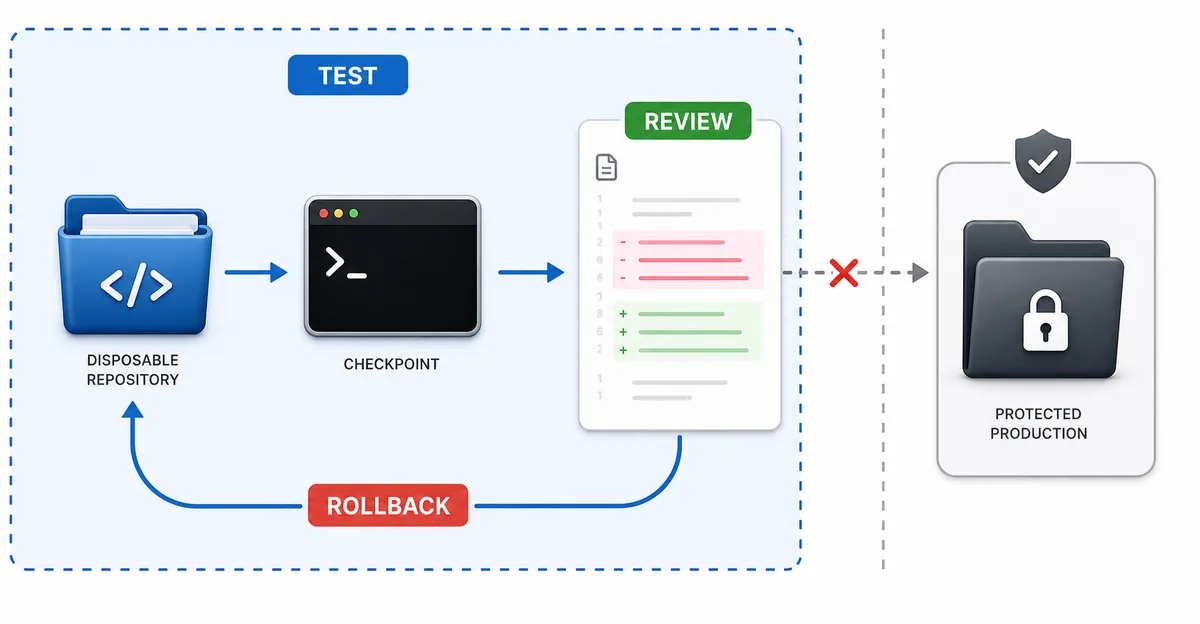
opencode --versionand the platform-specific path command. Make sure both point to the same install channel. - Start a low-risk project. Use a disposable repository or a branch with a clean Git diff. Do not begin the first test in a production checkout.
- Check provider and model access. Run a read-only prompt, list the expected model, and confirm that credentials are loaded without printing a secret.
- Exercise permissions. Ask for a file read, a small proposed edit, and a command that should require approval. Confirm that your allow and deny rules still behave as expected.
- Test extensions. Run one important agent, command, skill, MCP server, or plugin. Major-line extensions may need migration even when routine CLI updates do not.
- Inspect the diff. Check changed files, generated output, logs, and the project configuration. A clean launch with an unexpected file change is not a clean result.
Write the result beside the version number: operating system, shell, install channel, provider, model, and the task you ran. This short record makes the next OpenCode update easier to compare and gives a teammate a reproducible rollback point.
Rollback when the update breaks the CLI
Stop using the changed installation until you know whether the failure is a path problem, a package problem, or a compatibility problem. Keep the old package cache or installer when your team policy allows it, and keep the configuration backup separate from the executable.
When the command is not found
Open a new shell, rerun where opencode or command -v opencode, and compare the result with the package-manager prefix. A shell profile can point to an old global bin directory. Fix the path first; reinstalling repeatedly can create more copies.
When a provider or model fails
Compare the active config path and model ID with the pre-update note. Do not paste a secret into a bug report. If only one provider fails, test a read-only request with the same account and inspect the official provider notes before changing permissions.
When a plugin or MCP server fails
Disable the extension in a test project and confirm the core CLI works. Then check its release notes and compatibility boundary. If the extension is V1-only, follow the plugin guide or the MCP guide rather than downgrading blindly.
For a major V1-to-V2 move, use the documented migration and backup plan. Routine update troubleshooting should not silently turn into a major-version migration.
Current OpenCode version note
On October 18, 2026, the first-party OpenCode changelog showed v2.0.32 at the top, with entries dated October 16, 2026. The official download page listed the V2 shell installer, npm package, Bun, Homebrew, Arch, and platform binaries. This is a dated verification, not a promise that the same version will remain latest.
The page does not publish a guessed direct file URL, file size, or security scan result. Use the official download route for the platform you actually run, and record the version returned by opencode --version after installation.
OpenCode update FAQ
How do I update OpenCode?
Identify the install channel, record the current version, then run that channel's update command. For V2 CLI installs, the documented command is opencode upgrade and update is an alias. Use npm, Bun, pnpm, Homebrew, or the official binary route when that is how your copy was installed.
What is the OpenCode CLI update command?
For an existing V2 CLI installation, use opencode upgrade; opencode update is the alias. If it is missing, check whether an older V1 package or another binary wins on PATH.
How do I update OpenCode to the latest version?
There is no safe universal command. “Latest” depends on the channel and platform. Check the official changelog and download page, update through the same channel, and verify the version printed by the binary.
How do I update OpenCode on Windows?
Use the official Windows download route for the intended architecture, replace the intended executable, open a new PowerShell session, and verify with Get-Command opencode and opencode --version.
Will an OpenCode update rewrite my config?
A routine CLI update should not be treated as a config migration. Keep a copy, read release notes, and inspect warnings. A V1-to-V2 move has separate compatibility rules and should follow the migration guide.
Should I update OpenCode before updating plugins?
Update the core CLI first in a test project, then check each plugin, MCP server, agent, and editor client. If an extension has its own compatibility release, apply that change separately and keep a rollback path.
Official sources and related guides
Commands and version notes were checked on October 18, 2026. Software release information changes, so open the first-party pages again when you perform a later update.